

wp:paragraph
Launching a search engine and spotting a lineup of popular topics that don’t apply to you makes it easy to feel disconnected.
/wp:paragraph
wp:paragraph
These suggestions highlight what’s currently gaining attention online, but users often see them as bothersome, unrelated, or invasive.
/wp:paragraph
wp:paragraph
Whether it’s internet trends, entertainment buzz, or game highlights, such prompts can overcrowd your search view and spark concerns about data tracking.
/wp:paragraph
wp:paragraph
Many users feel that these trending entries disrupt their original search goal.
/wp:paragraph
wp:paragraph
Some suspect these recommendations result from their digital activity, while others feel burdened by updates that don’t match their preferences.
/wp:paragraph
wp:paragraph
Side note:
/wp:paragraph
wp:paragraph
Experts in search optimization and digital campaigns may still benefit from monitoring real-time trends.
/wp:paragraph
wp:paragraph
Specialized keyword tracking platforms can provide targeted and valuable insights in these cases.
/wp:paragraph
wp:image {“id”:54147,”width”:”668px”,”height”:”auto”,”sizeSlug”:”large”,”linkDestination”:”media”,”align”:”center”}

/wp:image
wp:heading
Why It’s Important
/wp:heading
wp:paragraph
Trending search topics can subtly shape your online experience. While they may seem trivial, they often have a bigger impact than you might realize.
/wp:paragraph
wp:paragraph
Here’s why you should consider disabling them:
/wp:paragraph
wp:list
- wp:list-item
- Privacy concerns: Trending searches can seem intrusive, even though they don’t directly link to your browsing.
/wp:list-item
/wp:list
wp:paragraph
/wp:paragraph
wp:list
- wp:list-item
- Interruptions: Constant exposure to unrelated trends can distract your attention from what matters most.
/wp:list-item
/wp:list
wp:paragraph
/wp:paragraph
wp:list
- wp:list-item
- Lack of relevance: These trends rarely match your personal preferences, making them less valuable.
/wp:list-item
/wp:list
wp:paragraph
/wp:paragraph
wp:list
- wp:list-item
- Influence on thoughts: Trending topics can quietly direct your focus toward irrelevant or popular discussions.
/wp:list-item
/wp:list
wp:paragraph
If these trending suggestions aren’t helping and only causing distractions, you can turn them off.
/wp:paragraph
wp:paragraph
This guide shows you how to disable them on various devices and platforms.
/wp:paragraph
wp:heading
Disable Google Trending Searches: A Quick Guide
/wp:heading
wp:paragraph
If Google shows trending searches that don’t interest you, follow these steps to disable them:
/wp:paragraph
wp:list {“ordered”:true}
- wp:list-item
- Launch the Google app on your Android or iPhone.
- Tap your profile icon, then go to Settings > General.
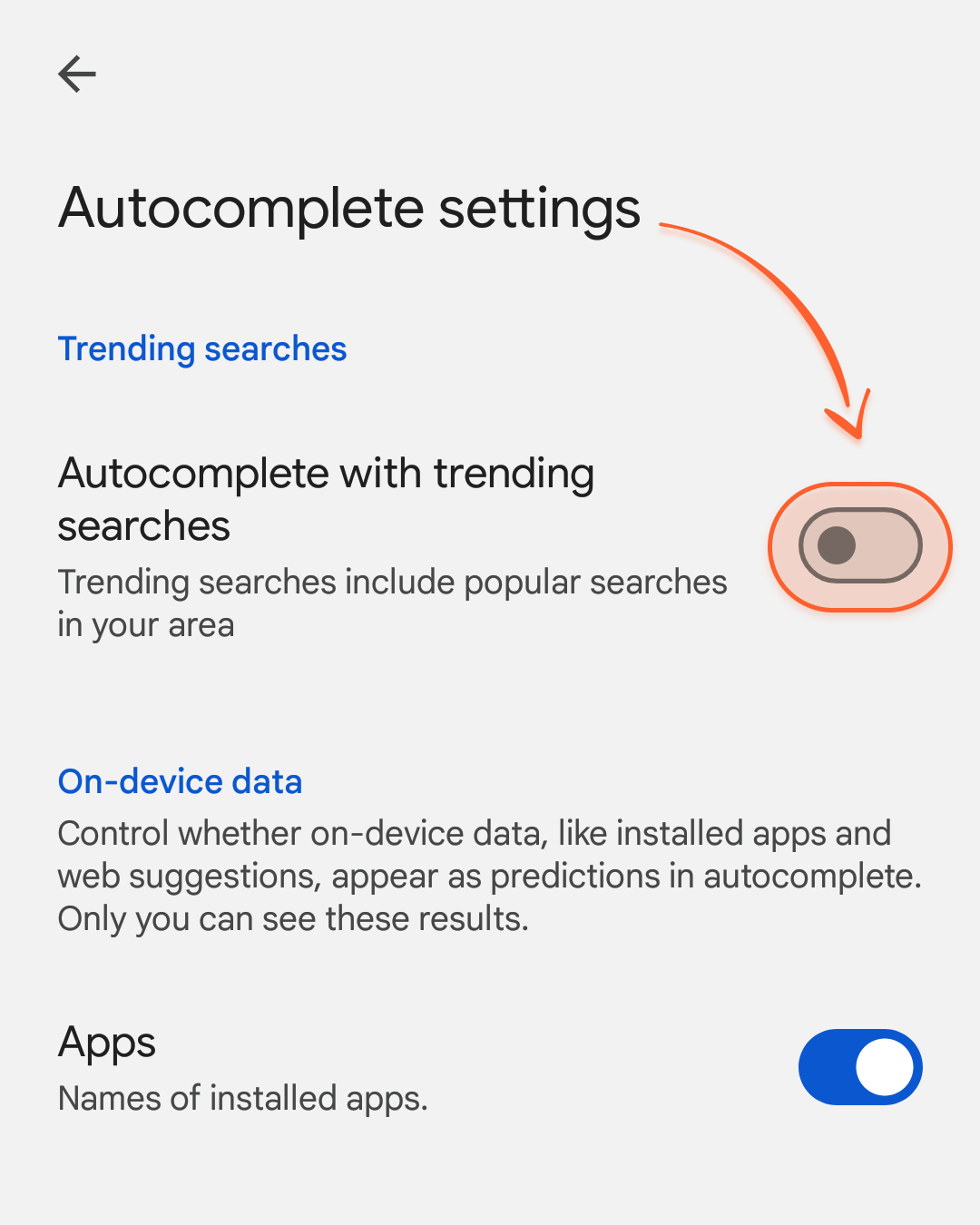
- Toggle off the “Autocomplete with trending searches” option.
/wp:list-item
wp:list-item
/wp:list-item
wp:list-item
/wp:list-item
/wp:list
wp:image {“id”:54148,”width”:”554px”,”height”:”auto”,”sizeSlug”:”large”,”linkDestination”:”media”,”align”:”center”}
/wp:image
wp:heading
Disabling Google Trending Searches on Android
/wp:heading
wp:paragraph
If you want to stop Google from showing trending searches on your Android device, here’s how to adjust the settings in various browsers:
/wp:paragraph
wp:heading {“level”:3}
In Chrome:
/wp:heading
wp:list {“ordered”:true}
- wp:list-item
- Launch Chrome and head to google.com.
- Tap the menu icon (three vertical lines) in the upper-left corner.
- From the sidebar, select “Search settings.”
- At the top, tap on “Other settings.”
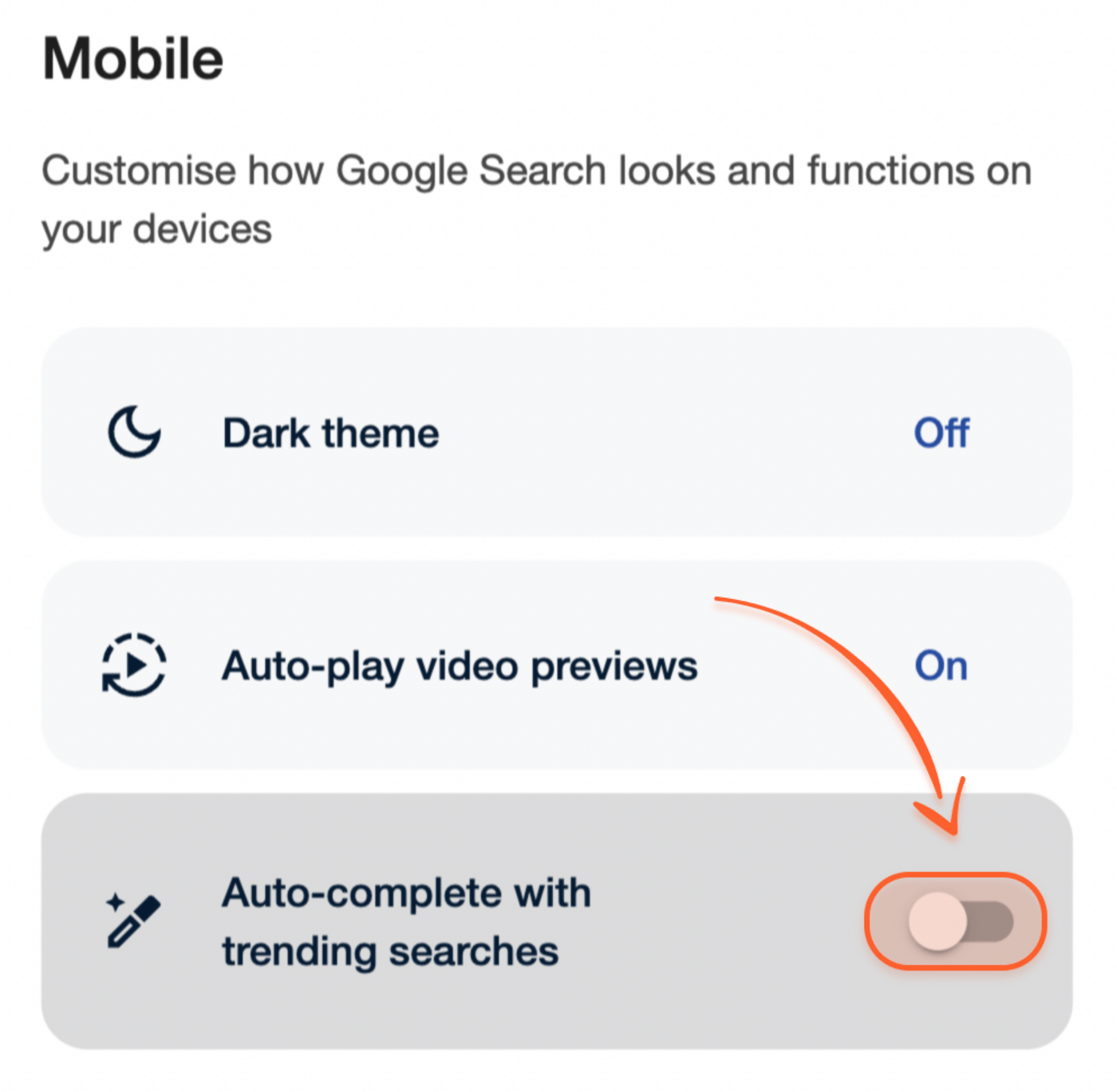
- Scroll down to find the “Autocomplete with trending searches” option and turn it off.
- Google will save your preferences automatically.
/wp:list-item
wp:list-item
/wp:list-item
wp:list-item
/wp:list-item
wp:list-item
/wp:list-item
wp:list-item
/wp:list-item
wp:list-item
/wp:list-item
/wp:list
wp:heading {“level”:3}
In Firefox:
/wp:heading
wp:list {“ordered”:true}
- wp:list-item
- Open Firefox and navigate to google.com.
- Scroll down and tap “Settings” at the bottom.
- Look for the “Autocomplete with trending searches” section and choose the “Do not show popular searches” option.
- Confirm by tapping “Save.”
/wp:list-item
wp:list-item
/wp:list-item
wp:list-item
/wp:list-item
wp:list-item
/wp:list-item
/wp:list
wp:heading {“level”:3}
In Brave:
/wp:heading
wp:list {“ordered”:true}
- wp:list-item
- Open Brave and go to google.com.
- Tap the menu icon in the upper-left corner.
- Choose “Search settings.”
- Select “Other settings” at the top.
- Scroll to the “Autocomplete with trending searches” section and turn it off.
- Save your changes by tapping “Save.”
/wp:list-item
wp:list-item
/wp:list-item
wp:list-item
/wp:list-item
wp:list-item
/wp:list-item
wp:list-item
/wp:list-item
wp:list-item
/wp:list-item
/wp:list
wp:heading {“level”:3}
In Microsoft Edge:
/wp:heading
wp:list {“ordered”:true}
- wp:list-item
- Open Edge and visit google.com.
- Tap the three-dot icon in the bottom-right corner and select “Settings.”
- Go to “Privacy and search” and turn off the autocomplete for trending searches.
/wp:list-item
wp:list-item
/wp:list-item
wp:list-item
/wp:list-item
/wp:list
wp:heading
Disabling Trending Searches on Windows, Mac, or iPad
/wp:heading
wp:paragraph
To turn off trending searches in major browsers such as Chrome, Firefox, Safari, or Edge, follow these steps:
/wp:paragraph
wp:list {“ordered”:true}
- wp:list-item
- Launch your browser and visit google.com.
- In the bottom-right corner of the homepage, click “Settings,” then choose “Search settings.”
- From the left-hand sidebar, select “Other settings.”
- Scroll down to the “Autocomplete with trending searches” section and turn it off.
- Your preferences will be saved automatically by Google.
/wp:list-item
wp:list-item
/wp:list-item
wp:list-item
/wp:list-item
wp:list-item
/wp:list-item
wp:list-item
/wp:list-item
/wp:list
wp:heading
Turning Off Google Trending Searches on iPhone
/wp:heading
wp:image {“id”:54150,”width”:”604px”,”height”:”auto”,”sizeSlug”:”large”,”linkDestination”:”media”,”align”:”center”}
/wp:image
wp:paragraph
For iPhone users, turn off trending searches in different browsers by following these steps:
/wp:paragraph
wp:list {“ordered”:true}
- wp:list-item
- Open your iPhone browser and go to google.com.
- Tap the menu icon (three horizontal lines) at the top left corner.
- Select “Search settings” from the menu.
- Tap “Other settings” near the top of the page.
- Find the “Autocomplete with trending searches” option and turn it off.
- The system will save your changes automatically.
/wp:list-item
wp:list-item
/wp:list-item
wp:list-item
/wp:list-item
wp:list-item
/wp:list-item
wp:list-item
/wp:list-item
wp:list-item
/wp:list-item
/wp:list
wp:heading
How to Disable Trending Searches in the Google App
/wp:heading
wp:paragraph
To stop trending searches from showing up in the Google app, follow these steps:
/wp:paragraph
wp:list {“ordered”:true}
- wp:list-item
- Open the Google app on your device.
- Tap on your profile picture or initials at the top-right corner (the layout may differ if you’re signed in).
- Go to “Settings.”
- Tap on “General.”
- On Android, select “Autocomplete settings” (ignore this step if you’re using an iOS device).
- Disable the “Autocomplete with trending searches” option.
/wp:list-item
wp:list-item
/wp:list-item
wp:list-item
/wp:list-item
wp:list-item
/wp:list-item
wp:list-item
/wp:list-item
wp:list-item
/wp:list-item
/wp:list
wp:heading
Resolving Common Issues with Trending Searches
/wp:heading
wp:paragraph
While turning off trending searches is typically easy, some users may face recurring problems. Below are solutions to a few common issues:
/wp:paragraph
wp:list
- wp:list-item
- Recurring Google Trending Searches
wp:list- wp:list-item
- Ensure you’re logged into your Google account, as changes will not save if you’re not signed in.
- Clear your browser’s cache and cookies to avoid conflicts caused by stored data.
- Restart your browser to apply the updates immediately.
/wp:list-item
wp:list-item/wp:list-item
wp:list-item/wp:list-item
/wp:list
- “Autocomplete with Trending Searches” Missing wp:list
- wp:list-item
- Ensure that your browser or Google app is up to date, as older versions may cause missing options.
- Use the leading google.com site rather than a regional version (such as google.co.uk or google.ca), since different settings may apply.
/wp:list-item
wp:list-item/wp:list-item
/wp:list
- Settings Not Syncing Between Devices wp:list
- wp:list-item
- Google settings do not always sync across devices automatically. Apply the settings on each device individually.
- Double-check that you’re using the same Google account on all your devices.
/wp:list-item
wp:list-item/wp:list-item
/wp:list
- Persistent Bugs or Glitches wp:list
- wp:list-item
- If a bug continues to disrupt the feature, try uninstalling and reinstalling your browser or Google app.
- Consider switching to another browser temporarily to help identify the issue.
/wp:list-item
wp:list-item/wp:list-item
/wp:list
/wp:list-item
wp:list-item
/wp:list-item
wp:list-item
/wp:list-item
wp:list-item
/wp:list-item
/wp:list
wp:heading
How Turning Off Trending Searches Enhances User Experience
/wp:heading
wp:image {“id”:54149,”width”:”630px”,”height”:”auto”,”sizeSlug”:”full”,”linkDestination”:”media”,”align”:”center”}

/wp:image
wp:paragraph
For many, Google’s trending searches can quickly turn from an occasional nuisance to a persistent distraction, cluttering the search results with irrelevant or unwanted topics.
/wp:paragraph
wp:paragraph
However, users who have chosen to turn off this feature have reported a marked improvement:
/wp:paragraph
wp:paragraph
“I never realized how much trending searches affected my results until I turned them off.
/wp:paragraph
wp:paragraph
Now, I find Google more useful for what I need, without being distracted by random trends.” — Reddit user.
/wp:paragraph
wp:paragraph
“Frustration set in when unrelated topics appeared during my specific searches.
/wp:paragraph
wp:paragraph
After disabling them, my searches became more focused, and I stopped encountering irrelevant content.”
/wp:paragraph
wp:paragraph
“In my high-paced work life, distractions are a waste of time. I didn’t realize how those trending suggestions pulled my attention until I turned them off.
/wp:paragraph
wp:paragraph
Now, I get quicker, more relevant answers without the extra noise.” — Productivity advocate.
/wp:paragraph
wp:paragraph
These experiences highlight how a simple change in settings can make a significant difference.
/wp:paragraph
wp:paragraph
Turning off trending searches removes distractions and gives users greater control over their search results.
/wp:paragraph
wp:heading
Additional Ways to Enhance Your Search Experience
/wp:heading
wp:list
- wp:list-item
- Use incognito mode to keep your search history private, preventing past activity from influencing suggestions.
/wp:list-item
/wp:list
wp:paragraph
/wp:paragraph
wp:list
- wp:list-item
- Try search engines that prioritize privacy, like DuckDuckGo, which does not show trending topics.
/wp:list-item
/wp:list
wp:paragraph
/wp:paragraph
wp:list
- wp:list-item
- Regularly update your Google account settings to customize your search results better.
/wp:list-item
/wp:list
wp:paragraph
/wp:paragraph
wp:list
- wp:list-item
- Turn off location-based suggestions in your Google account to avoid irrelevant results.
/wp:list-item
/wp:list
