

PDFs are great for preserving layout, but they can feel frustrating when you need to fix a typo, update a paragraph, swap a logo, or insert a new image. Unlike Word documents, PDFs are not always designed for quick edits, so using the right tool matters.
If you need full control over both text and images, there are two practical ways to handle the job: an offline PDF editor installed on your device or an online PDF editor you can use in your browser.
Offline software is usually better for larger files, repeated edits, and privacy-sensitive documents, while online tools are ideal for quick updates without installing anything.
Below, we’ll walk through both methods step by step, using Wondershare PDFelement as the offline option and HiPDF as the online option.
Option 1: Use an Offline PDF Editor
An offline PDF editor is often the best choice when you want stronger editing control, faster performance on large files, and better privacy because the work is done on your device.
Wondershare PDFelement is a strong option here because it is built for full PDF workflows, not just simple annotations.
It supports text editing, image insertion and adjustment, page organization, OCR for scanned files, conversion, forms, eSign, and more. It is also designed to let users edit PDFs more like Word documents, which makes routine content updates much easier.
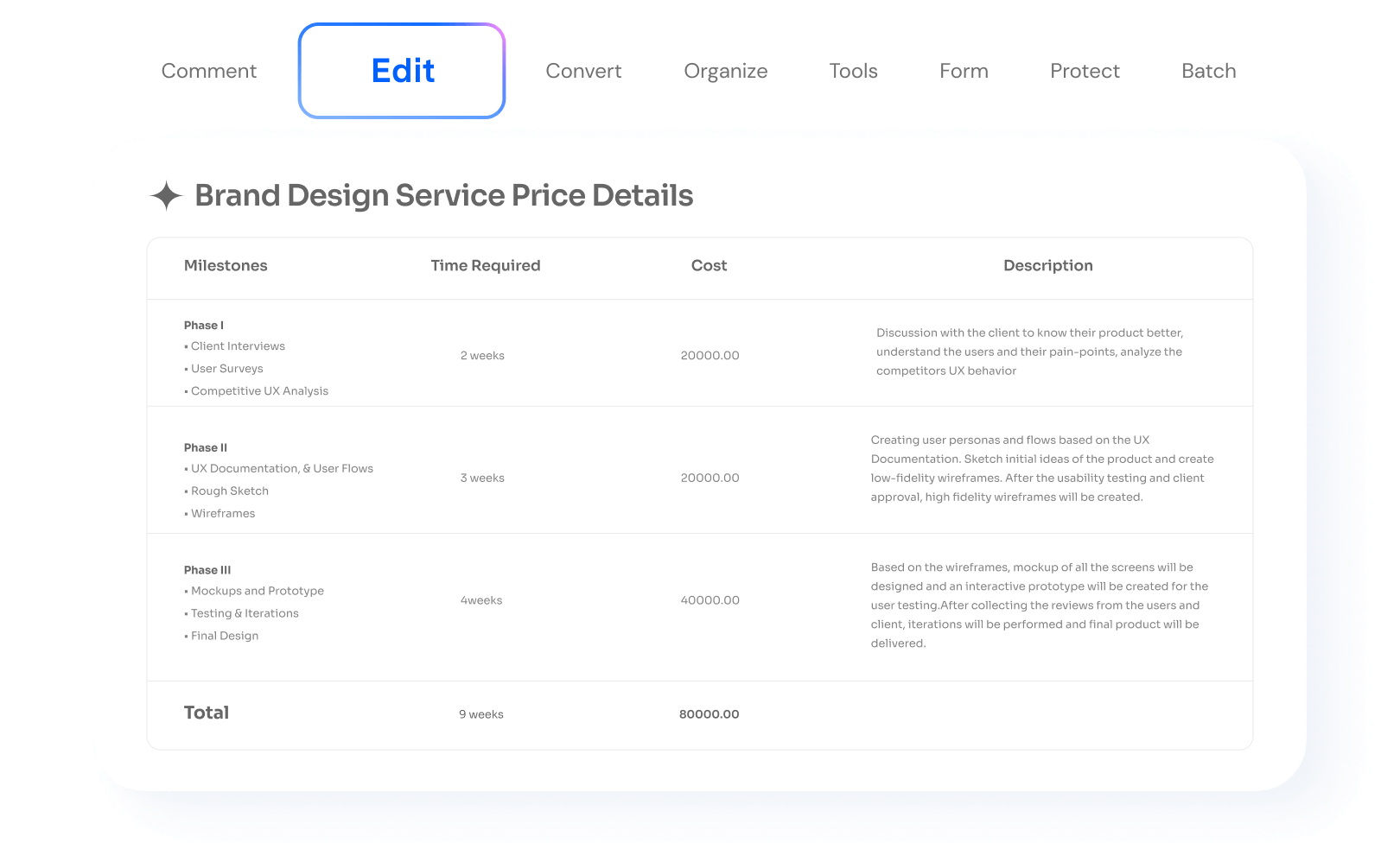
Step 1. Open PDF Files
Start by launching PDFelement and opening the PDF you want to edit. This quick review helps you avoid accidental formatting changes and makes the editing process more efficient, especially if the PDF contains multiple pages, graphics, or sections with different styles.
Step 2. Edit Existing Text in PDF
If you need to correct a typo, revise a sentence, or update a paragraph, PDFelement allows you to edit existing text directly inside the PDF.
Click Edit All to enable PDF editing. You can update text, adjust font size, change color, and refine alignment as needed. One of its key advantages is that it is designed to preserve the original layout while letting you modify the content.
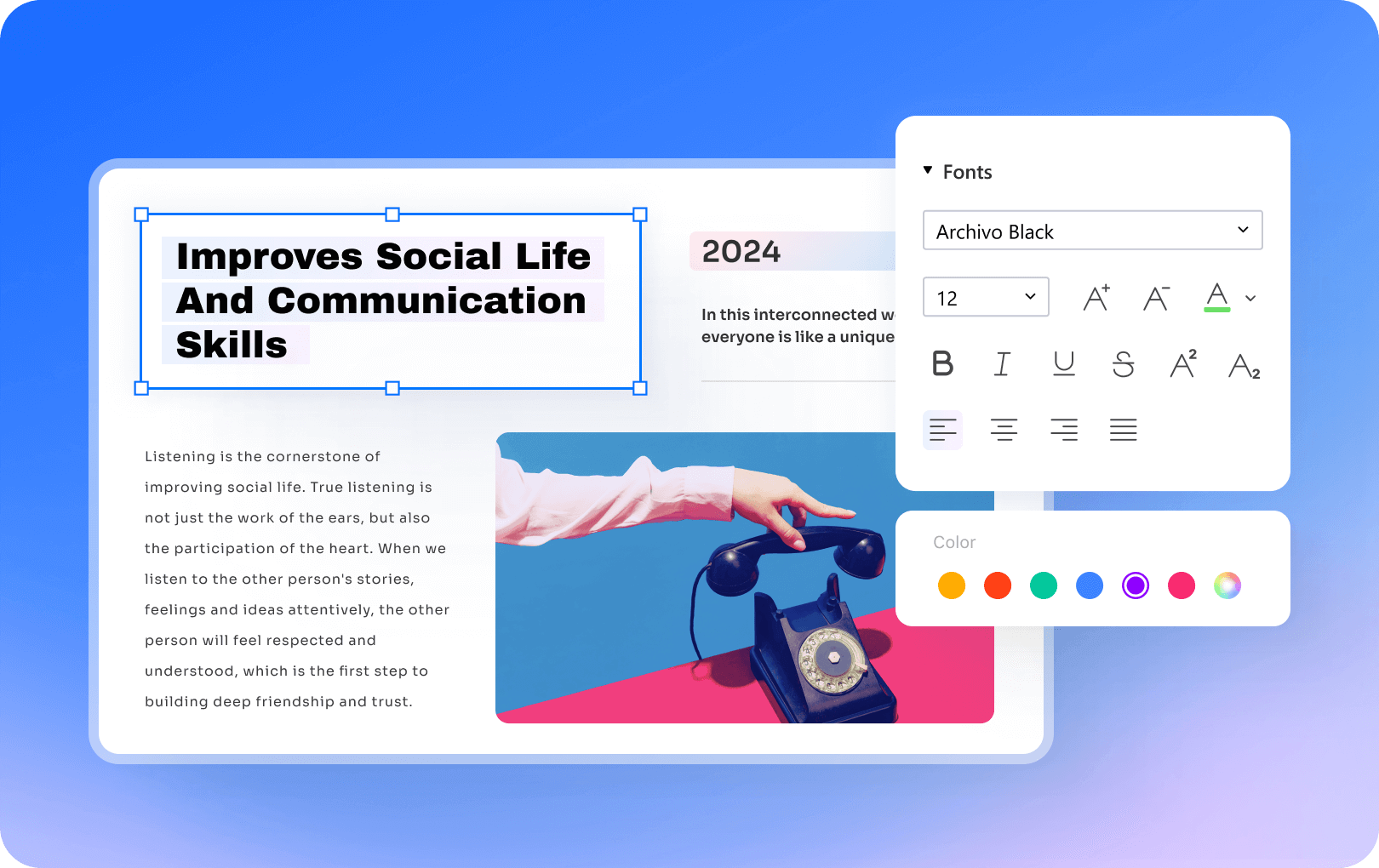
Tip: If the PDF was created from a scan rather than an original digital file, you may need OCR first before the text becomes editable.
Step 3. Add New Text to the PDF
Sometimes you do not just need to revise old content—you need to insert something entirely new. Click Add Text to add new text blocks to a PDF. You can place text where it is needed and then adjust the formatting so it matches the surrounding content as closely as possible.
Step 4. Insert Images in PDF
Text is only one side of PDF editing. In many cases, you also need to work with visuals, such as adding a company logo, placing a product photo, inserting a signature image, or updating marketing graphics.
PDFelement supports image insertion and image adjustment within PDFs. Click Edit > Image > Add Image. You can add images into the document and position them where they belong without rebuilding the file from scratch.
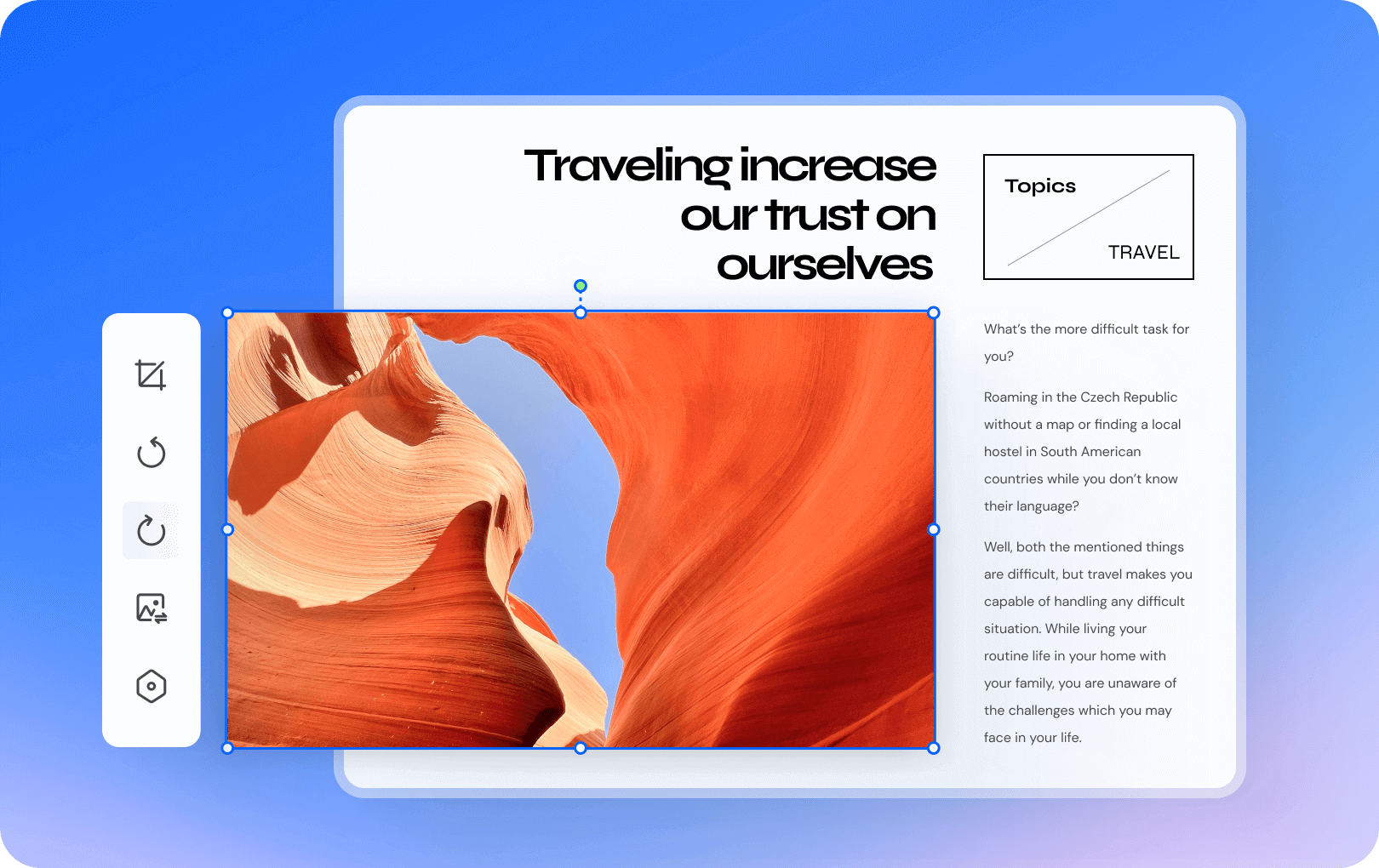
Step 5. Resize Images in PDF
After inserting an image, the next step is usually resizing it so it fits naturally into the page layout.
PDFelement supports common image adjustments, making it easier to scale visuals to the right dimensions. Depending on your needs, you may also want to reposition, crop, rotate, flip, or adjust opacity for better placement and consistency.
Step 6. Save Edited PDF
Once your text and image edits are complete, save the PDF and review the final version before sharing it.
Option 2: Use an Online PDF Editor
If you only need quick edits and do not want to install software, an online PDF editor can be a convenient alternative. This method is useful for simple text changes, light image additions, and one-off tasks you want to finish directly in your browser.
HiPDF is a good fit for this kind of workflow. It offers a browser-based PDF toolkit that includes editing, conversion, compression, merging, cropping, and AI-powered PDF functions. It is especially convenient for users who want a lightweight, accessible solution from different devices.
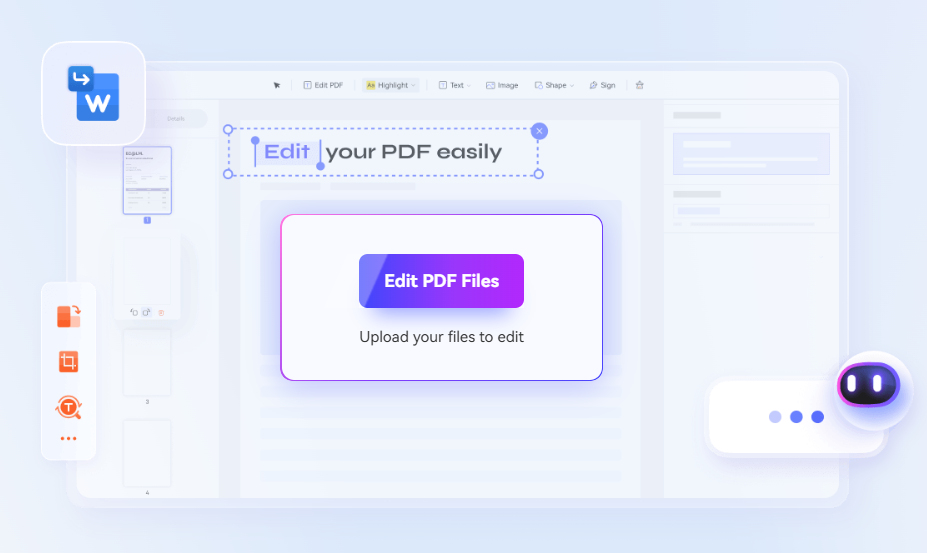
Step 1. Upload PDF Files
Go to HiPDF PDF editor in your browser and upload the PDF you want to edit. Once the file is loaded, wait for the editor to prepare it for changes.
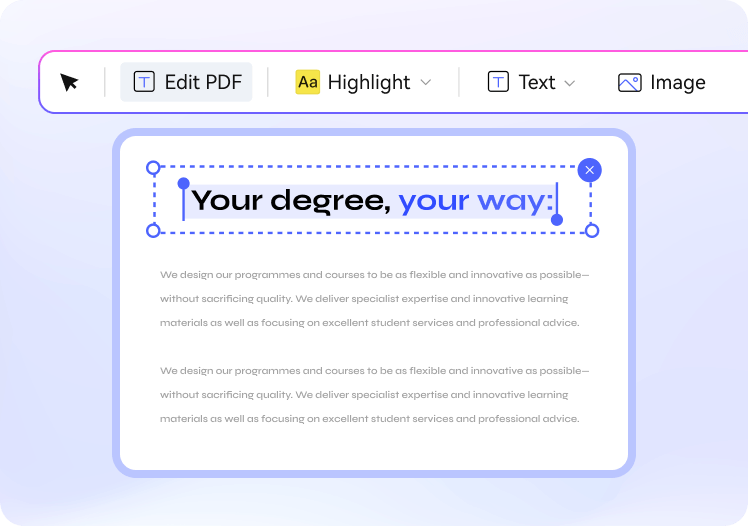
Step 2. Edit Existing Text
After the file opens, locate the text you want to update. HiPDF supports editing PDF text, including changes to text color and font size, which makes it useful for light revisions.
For heavily formatted documents or long text rewrites, offline software is usually the smoother option.
Step 3. Add New Text
If you need to place fresh content in the file, use the tool’s text-adding feature to insert a new text block.
Keep the addition short and visually aligned with the rest of the page. Online editors are convenient, but they are generally best for lighter adjustments rather than detailed layout rebuilding. That is why careful placement matters here.
Step 4. Add Images in PDF
HiPDF also supports adding images or shapes to a PDF. This is useful if you want to place a logo, insert a screenshot, or add a simple visual element to the page.
Step 5. Download Edited PDF
After you finish editing, download the updated PDF to your device and check it once more before sending or publishing it.
This final review is important because browser-based editing is meant for speed. A quick check helps you confirm that the file downloaded correctly and that your formatting still looks right.
Comparison: Offline PDF Editor vs Online PDF Editor
Here is a side-by-side comparison to help you decide which method fits your needs best:
| Feature | Wondershare PDFelement | HiPDF |
|---|---|---|
| Setup | Requires installation | Works in browser |
| Best for | Regular editing, large files, advanced tasks | Quick edits, lightweight tasks, convenience |
| Text editing | Strong control over existing and new text | Good for basic text updates |
| Image editing | Better for inserting, resizing, and adjusting images | Suitable for simple image additions |
| Performance | Typically more stable for complex PDFs | Depends on browser and internet connection |
| Privacy | Files handled on your device | Files are processed online |
| Ideal user | Professionals, teams, frequent PDF users | Casual users, students, quick one-time edits |
In general, choose an offline PDF editor if you work with PDFs often, deal with sensitive files, or need more control over text and image formatting. Choose an online PDF editor if you want speed, convenience, and minimal setup for smaller editing tasks.
Conclusion
Editing text and images in PDFs does not have to be difficult when you use the right approach. If you want deeper control, smoother handling of large files, and a more complete PDF workflow, Wondershare PDFelement is a strong offline solution.
If your goal is simply to make a few quick changes in a browser, HiPDF offers a practical online alternative. It is easy to access, simple to use, and helpful for lighter PDF editing tasks when convenience matters most.
