

My five-year-old laptop had become a source of daily frustration. Boot times had stretched past three minutes. Applications stuttered and froze.
Fan noise was constant. I had tried manual cleanup methods deleting temporary files, disabling startup programs, even reinstalling Windows once but nothing seemed to provide lasting relief.
A colleague suggested I try Advanced SystemCare, a well-known PC cleaner tool from IObit that had recently released its 19th version with AI-powered optimization features. What happened next genuinely surprised me.
Within minutes of running the software, my PC felt noticeably faster. The boot time dropped from over three minutes to under 45 seconds.
Background processes that had been silently draining CPU power were identified and neutralized. Over 4 GB of junk files were removed in a single scan.
This article walks through my experience, what the AI features actually do, and why Advanced SystemCare has become a permanent fixture on my machine.
First Sight of Advanced SystemCare 19
Unlike basic disk cleaners that simply delete temporary files, Advanced SystemCare 19 operates across multiple layers of the Windows ecosystem.
It scans the registry for invalid entries, monitors real-time system performance, identifies malware and privacy risks, clears browser traces, and even optimizes internet connection settings.
The AI layer on top of all this means the software learns from your usage patterns and adapts its optimization recommendations accordingly.
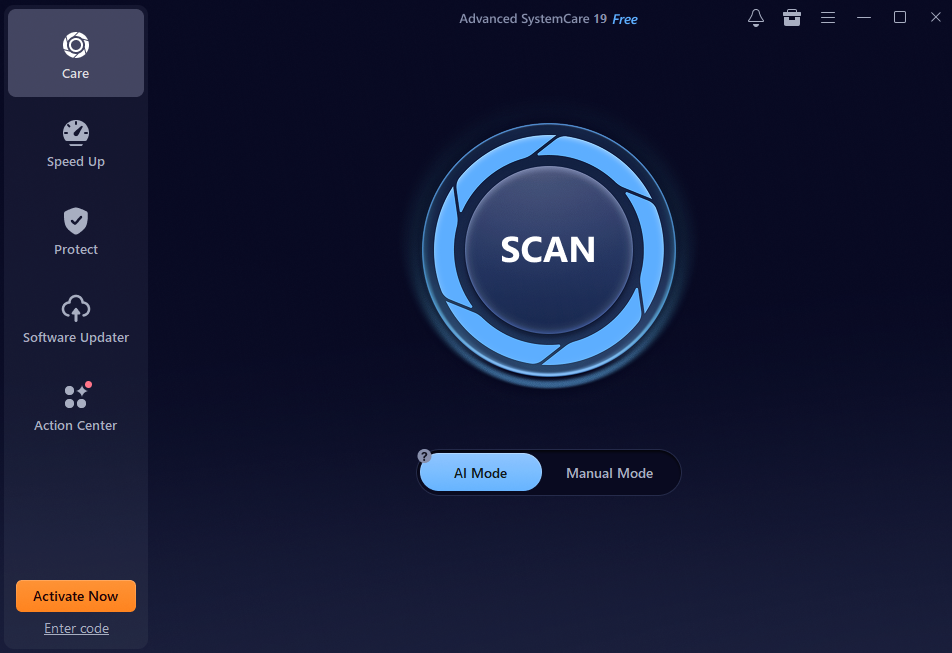
Here are the standout features I found most useful while using Advanced SystemCare:
- AI Mode Cleaning: This AI-powered PC cleaner can scan automatically detects junk files, registry issues, privacy traces, and system slowdowns based on your PC’s condition and usage habits.
- Single Click Health Check: A single click scans and repairs common Windows problems, making it easy for beginners to clean and optimize their systems quickly.
- Startup Optimizer: Shows which programs slow down boot time and lets you disable or delay unnecessary startup apps for faster Windows loading.
- Improved Junk File Cleaner: Removes temporary files, software leftovers, cache data, and even junk from Microsoft Store apps to free up storage space.
- Turbo Boost: Temporarily disables unnecessary background services to improve gaming, streaming, and overall PC responsiveness.
- Anti-Spyware Protection: Scans for spyware, malware, and hidden threats to help keep your system secure.
- Privacy Sweep: Clears browsing history, cookies, and other privacy traces to protect your personal data.
- Software Updater: Updates outdated applications and Microsoft Store apps to improve security and system stability.
- Real-Time Performance Monitor: Tracks CPU, RAM, disk usage, temperatures, and system activity so you can spot resource-heavy programs instantly.
- Safe Folder Protection: Helps protect sensitive files from unauthorized access and ransom ware attacks.
How I Clean and Speed Up My Old PC with Advanced SystemCare
After using it regularly, I noticed a major improvement in performance, responsiveness, and overall stability. Here’s the exact process I personally use to clean, optimize, and speed up my old Windows PC in just a few minutes.
Step 1: Install and Launch the Software
First, I downloaded and installed Advanced SystemCare on my computer. Once I opened the software, I immediately noticed the redesigned interface looked simple and organized. Even as someone who doesn’t enjoy digging through technical settings, I found every tool easy to access.
Step 2: Choose My Cleaning Mode
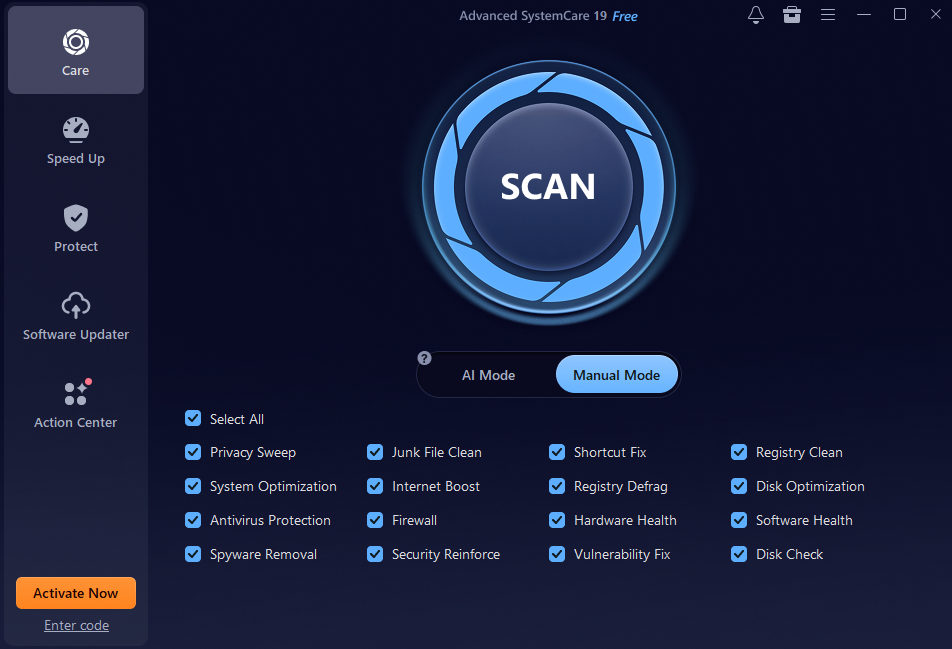
When launching the software, I saw two main options:
- AI Mode — Automatically scans and optimizes the PC based on system condition and usage habits
- Manual Mode — Performs a deeper manual scan for advanced cleanup
Most of the time, I personally use AI Mode because it’s faster and handles everything automatically.
Step 3: Run a Full System Scan
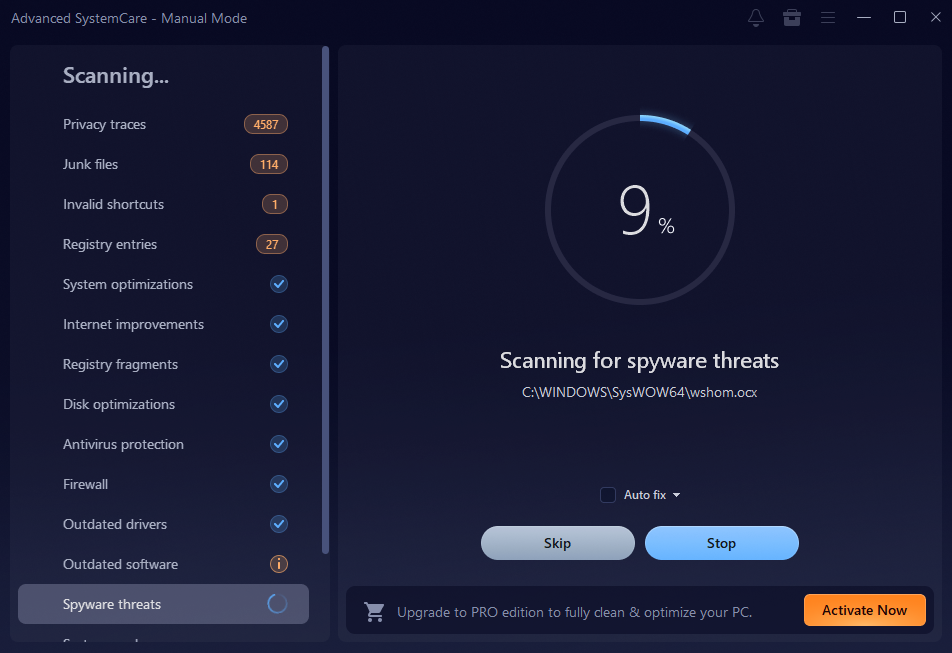
After selecting the manual mode for the first time, I clicked the Scan button and let the software analyze my PC.
The scan checked for: Junk files, Temporary data, Invalid shortcuts, Registry errors, Privacy traces, Spyware risks, Startup issues, Security vulnerabilities. I was honestly surprised by how many unnecessary files and system problems had accumulated over time.
Step 4: Review the Scan Results
Once the scan finished, Advanced SystemCare grouped all detected issues into clear categories.
What I liked was that I could:
- Review every issue manually
- Keep files I didn’t want removed
- See how much storage space could be recovered
This made the cleanup process feel much safer and easier to control.
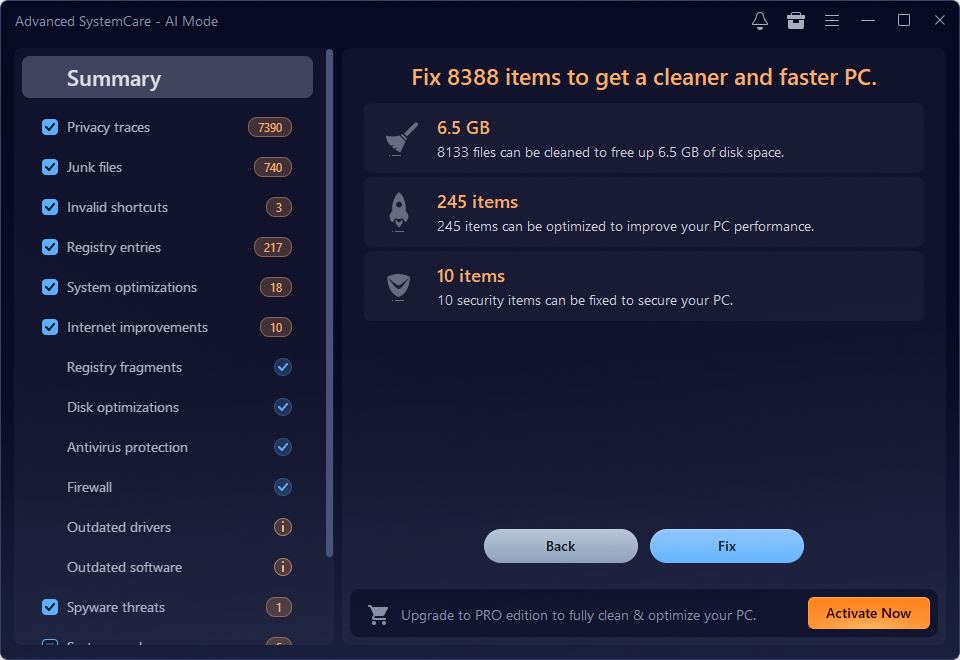
Step 5: Clean and Repair My PC
After reviewing everything, I clicked Repair to let the software fix the detected problems automatically. This process helped me:
- Free up disk space
- Remove system clutter
- Improve Windows responsiveness
- Reduce unnecessary background activity
After the cleanup, my system immediately felt smoother and more responsive.
Step 6: Optimize Startup Programs
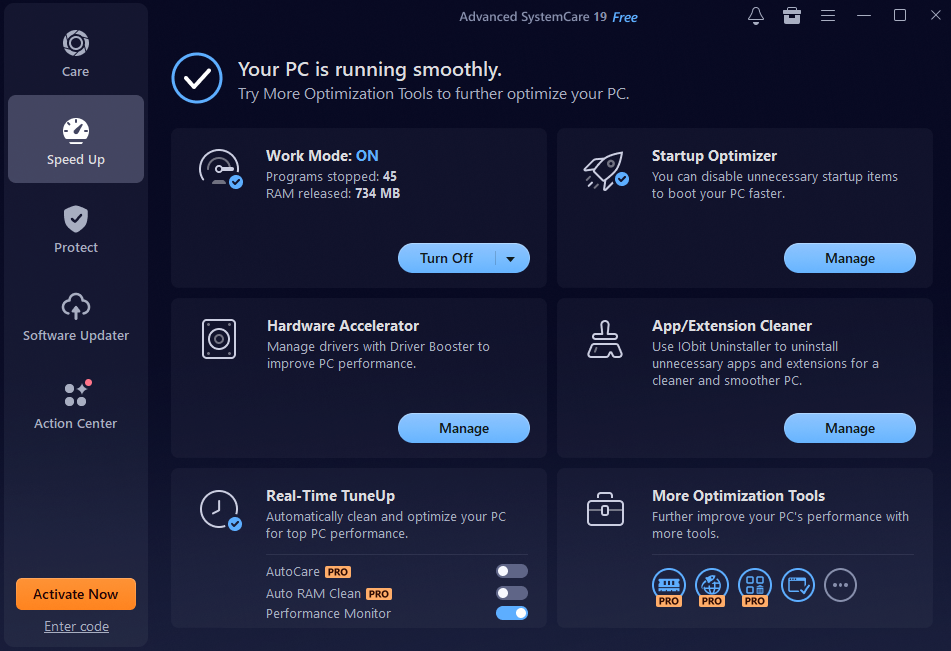
One feature that made a huge difference on my older PC was Startup Optimizer. I opened the Speed Up section and used it to:
- Disable unnecessary startup apps
- Delay non-essential software
- Stop unwanted background services
- Improve boot speed significantly
This alone noticeably reduced the amount of time Windows needed to start.
Step 7: Use Turbo Boost for Extra Performance
I also started using Turbo Boost, especially when multitasking or gaming. The feature temporarily disables unnecessary background services to free up system resources. I could choose between: Work Mode, Game Mode, Economy Mode. After enabling it, my PC felt faster almost instantly.
Step 8: Update Outdated Software
Another useful feature I discovered was the built-in Software Updater. I used it to update old applications and Microsoft Store apps automatically. Keeping software updated helped me:
- Improve system stability
- Fix security vulnerabilities
- Reduce crashes and freezing problems
It also saved me time because I didn’t need to manually check for updates.
Step 9: Protect Your Privacy and Files
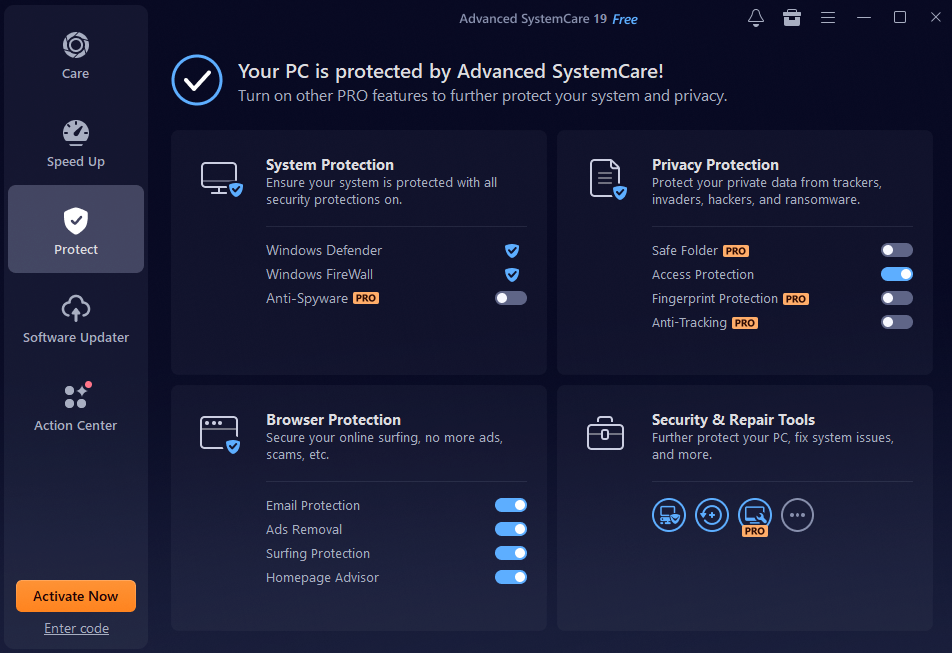
Not just a Windows cleaner, I also started using the privacy and protection tools included in Advanced SystemCare.
The features I used most were: Privacy Sweep, Browser Protection, Safe Folder. These tools helped remove browsing traces, block potential threats, and protect sensitive files from unauthorized access.
Step 10: Enable Automatic Maintenance
Finally, I enabled AutoCare, which automatically cleans and optimizes my PC in the background. This became one of my favorite features because I no longer needed to remember to run manual cleanups regularly. The software now keeps my system maintained automatically.
Final Thoughts
I originally thought my old PC was simply outdated, but after cleaning and optimizing it with Advanced SystemCare, I realized a huge part of the slowdown came from junk files, unnecessary startup programs, background processes, and system clutter.
What I personally liked most was how easy the entire process felt. Instead of manually searching through Windows settings and system folders, Advanced SystemCare automated almost everything while still giving me full control over the cleanup process.
From my experience, regular maintenance with a reliable Windows cleaner can noticeably improve performance, free up storage space, and extend the usable life of an older computer.
