

wp:paragraph
Minecraft players can connect and play across devices using aka.ms/remoteconnect. This link enables cross-platform gameplay by allowing users to sign in with a Microsoft account.
/wp:paragraph
wp:paragraph
Whether on Xbox, PlayStation, or Nintendo Switch, this connection helps synchronize your game data and purchases across devices.
/wp:paragraph
wp:image {“id”:53617,”width”:”670px”,”height”:”auto”,”sizeSlug”:”full”,”linkDestination”:”media”,”align”:”center”}
/wp:image
wp:heading
How aka.ms/remoteconnect Helps Minecraft Players
/wp:heading
wp:paragraph
To use aka.ms/remoteconnect, a Microsoft account is required. This enables players to retrieve their stored data and enjoy multiplayer gaming on different platforms, including:
/wp:paragraph
wp:list
- wp:list-item
- Xbox One
/wp:list-item
/wp:list
wp:paragraph
/wp:paragraph
wp:list
- wp:list-item
- PlayStation 4 & 5
/wp:list-item
/wp:list
wp:paragraph
/wp:paragraph
wp:list
- wp:list-item
- Nintendo Switch
/wp:list-item
/wp:list
wp:paragraph
/wp:paragraph
wp:list
- wp:list-item
- iOS & Android devices
/wp:list-item
/wp:list
wp:paragraph
You can connect your Minecraft game across these platforms using a Microsoft account and enjoy a seamless multiplayer experience.
/wp:paragraph
wp:heading
Setting Up Crossplay Using aka.ms/remoteconnect
/wp:heading
wp:image {“id”:53619,”width”:”668px”,”height”:”auto”,”sizeSlug”:”full”,”linkDestination”:”media”,”align”:”center”}
/wp:image
wp:paragraph
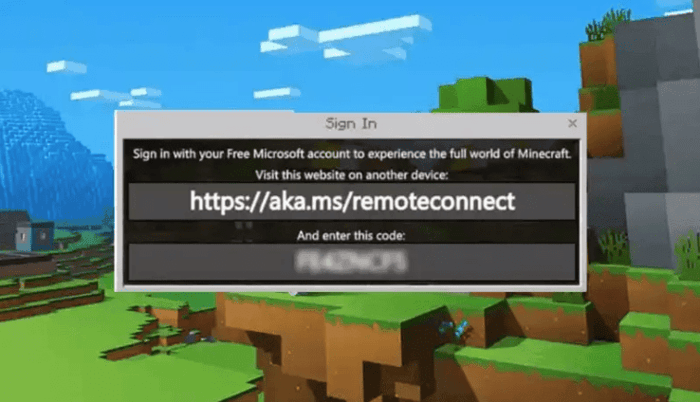
Crossplay allows gamers on various platforms to play together. To activate it:
/wp:paragraph
wp:list {“ordered”:true}
- wp:list-item
- Sign in with a Microsoft Account – Go to aka.ms/remoteconnect and log in.
- Enter the Code – A code appears on the screen when launching Minecraft on a console. Enter this code on the website.
- Complete the Process – Click “Next” and follow the instructions to finalize the connection.
/wp:list-item
wp:list-item
/wp:list-item
wp:list-item
/wp:list-item
/wp:list
wp:paragraph
Once completed, you can play Minecraft with friends across different devices.
/wp:paragraph
wp:heading
Common Errors and Fixes for aka.ms/remoteconnect
/wp:heading
wp:paragraph
Some users encounter errors while using aka.ms/remoteconnect. These issues mostly arise on PlayStation and Nintendo Switch consoles. Below are common problems and their solutions:
/wp:paragraph
wp:heading {“level”:3}
1. aka.ms/remoteconnect Error Message
/wp:heading
wp:paragraph
This message appears when players try to use a Microsoft account to access crossplay. The error usually occurs due to:
/wp:paragraph
wp:paragraph
Possible CauseSolution
/wp:paragraph
wp:list
- wp:list-item
- Previously used Microsoft account on another console
/wp:list-item
/wp:list
wp:paragraph
/wp:paragraph
wp:list
- wp:list-item
- Use a new Microsoft account or unlink the old one.
/wp:list-item
/wp:list
wp:paragraph
/wp:paragraph
wp:list
- wp:list-item
- Server connection issues
/wp:list-item
/wp:list
wp:paragraph
/wp:paragraph
wp:list
- wp:list-item
- Restart the console and try again.
/wp:list-item
/wp:list
wp:paragraph
/wp:paragraph
wp:list
- wp:list-item
- Incorrect login details
/wp:list-item
/wp:list
wp:paragraph
/wp:paragraph
wp:list
- wp:list-item
- Ensure you enter the correct email and password.
/wp:list-item
/wp:list
wp:paragraph
If the issue persists, go to aka.ms/remoteconnect and try signing in again.
/wp:paragraph
wp:heading {“level”:3}
2. Code Not Working
/wp:heading
wp:paragraph
If the code does not work:
/wp:paragraph
wp:list
- wp:list-item
- Double-check if it was entered correctly.
/wp:list-item
/wp:list
wp:paragraph
/wp:paragraph
wp:list
- wp:list-item
- Restart your console and get a new code.
/wp:list-item
/wp:list
wp:paragraph
/wp:paragraph
wp:list
- wp:list-item
- Ensure your internet connection is stable.
/wp:list-item
/wp:list
wp:heading {“level”:3}
3. Unable to Link Microsoft Account to PlayStation
/wp:heading
wp:paragraph
Once a Microsoft account is linked to a PlayStation Network (PSN) account, it cannot be changed. To avoid issues, ensure you use the correct account from the beginning.
/wp:paragraph
wp:heading
How to Retrieve the Minecraft Code?
/wp:heading
wp:paragraph
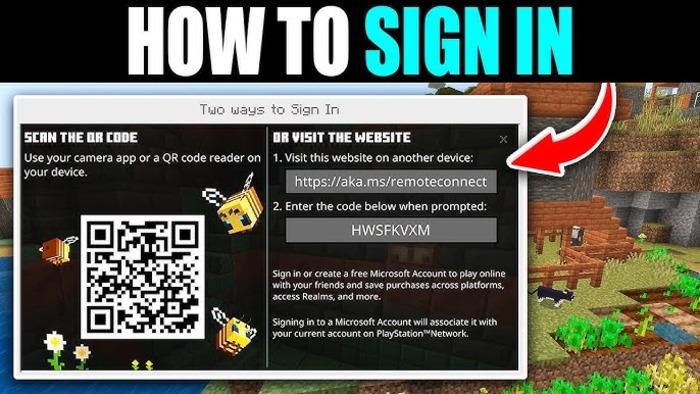
To access your game using aka.ms/remoteconnect, follow these steps:
/wp:paragraph
wp:list {“ordered”:true}
- wp:list-item
- Visit https://aka.ms/remoteconnect.
- Sign in with your Microsoft account.
- Enter the 8-digit code from your device.
- Click “Next” to complete the process.
- Start playing Minecraft with your connected account.
/wp:list-item
wp:list-item
/wp:list-item
wp:list-item
/wp:list-item
wp:list-item
/wp:list-item
wp:list-item
/wp:list-item
/wp:list
wp:image {“id”:53618,”width”:”654px”,”height”:”auto”,”sizeSlug”:”full”,”linkDestination”:”media”,”align”:”center”}
/wp:image
wp:heading
Transferring Minecraft Purchases
/wp:heading
wp:paragraph
Using aka.ms/remoteconnect, you can transfer Marketplace purchases between platforms.
/wp:paragraph
wp:paragraph
If you have bought skins, maps, or other add-ons on one device, you can access them on another, provided you use the same Microsoft account.
/wp:paragraph
wp:heading
Connecting PlayStation to a Microsoft Account
/wp:heading
wp:paragraph
To link your PS4 or PS5 to a Microsoft account:
/wp:paragraph
wp:list
- wp:list-item
- Open Minecraft and go to the login section.
/wp:list-item
/wp:list
wp:paragraph
/wp:paragraph
wp:list
- wp:list-item
- Enter your Microsoft account details.
/wp:list-item
/wp:list
wp:paragraph
/wp:paragraph
wp:list
- wp:list-item
- Follow the instructions on aka.ms/remoteconnect.
/wp:list-item
/wp:list
wp:paragraph
/wp:paragraph
wp:list
- wp:list-item
- Once linked, your progress and purchases will sync across devices.
/wp:list-item
/wp:list
wp:paragraph
Be careful when linking accounts, as the Microsoft account connected to a PlayStation Network account cannot be changed later.
/wp:paragraph
wp:heading
How to Contact Minecraft Support?
/wp:heading
wp:paragraph
If you still face issues after trying the above solutions, contact Minecraft Support:
/wp:paragraph
wp:list {“ordered”:true}
- wp:list-item
- Visit the Minecraft support page.
- Select your language and platform.
- Describe the issue in detail.
- Submit the form and wait for a response.
/wp:list-item
wp:list-item
/wp:list-item
wp:list-item
/wp:list-item
wp:list-item
/wp:list-item
/wp:list
wp:heading
Final Thoughts
/wp:heading
wp:paragraph
Using aka.ms/remoteconnect, Minecraft players can enjoy cross-platform gaming.
/wp:paragraph
wp:paragraph
By linking a Microsoft account, they can play with friends, transfer purchases, and access their game on multiple devices. If errors occur, simple troubleshooting steps can help fix most issues.
/wp:paragraph
wp:heading
Frequently Asked Questions
/wp:heading
wp:heading {“level”:3}
Can I Play Minecraft on Xbox and PlayStation Together?
/wp:heading
wp:paragraph
Yes, as long as both players use the same game edition and version.
/wp:paragraph
wp:heading {“level”:3}
What is aka.ms/remoteconnect Used For?
/wp:heading
wp:paragraph
It enables cross-platform gameplay in Minecraft, allowing users to connect their Microsoft account and play across multiple devices.
/wp:paragraph
wp:heading {“level”:3}
Is aka.ms/remoteconnect Safe?
/wp:heading
wp:paragraph
Yes, it is a secure and official Microsoft website used for Minecraft account connections.
/wp:paragraph
wp:paragraph
With this guide, you can successfully set up Minecraft crossplay and fix any issues related to aka.ms/remoteconnect.
/wp:paragraph
